
You can see the main window after opening the application (and closing the welcome window). Main window is the main navigation window of the application
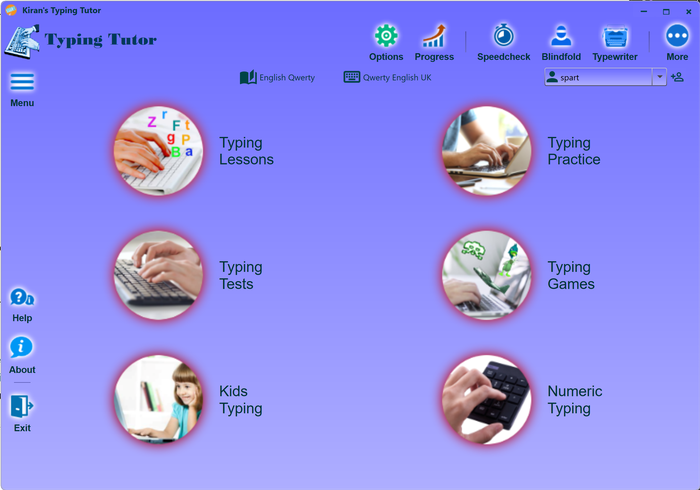
Kiran's Typing Tutor provides a complete typing learning suite; it has many modules and functions; the main modules are listed below.
| Main Trainig | More Training | Desiners | Tools |
|
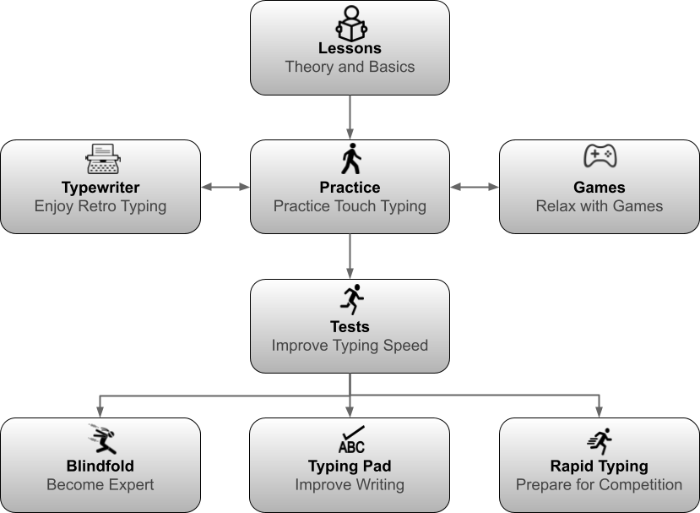
You can start Typing-Tutor from any module, but if you are a beginner, we strongly recommend you to follow the below road map starting from Typing Lessons.
Open Options by clicking options button on main window and check desired keyboard, course, and application language, voice and input language are selected..
Keyboard language, course language and input language MUST be the same. Ideally voice and application languages should also be the same.
Nvigate to each tab on Options window and change Audio and Visual settings as per your requirements.
Example, if you do not want audio help, then you can select No Audio Help option. We recommend using Typing Sound option on, but if you want silent typing then you can uncheck typing sound. You can change visual help as per your requirements, example if do not want guiding finger preview help then you can select None from Show Finger Preview dropdown.
Check user name(id) is selected in main window. If you don't see your user id in the dropdown, you can add a new user id by clicking + add user button.
Always use windows (os) user-id. better not create local typing tutor user id. preferences/options are always saved at windows user id level.
It has simple user-friendly navigation; close module windows to come back to Main window. Navigating through the different Windows: Every part of the application is very flexible to navigate; you can either use a mouse or keyboard to navigate. When you use mouse, click the control to execute its function, when you navigate through the keyboard, you can do it in two ways either use tab key, get focus on the control and press space bar to execute the control's function, or use shortcut keys to execute the control's function ex. Press f1 for help, press Ctrl (Control) + P for typing practice...
Start training from Typing Lessons, you will get good understanding of touch-typing and the training after finishing the typing lessons. use Prev(<), Next(>) buttons to navigate lessons.
After finishing the typing lessons go to Typing Practicesand practice touch-typing with the visual and audio help.
After finishing the typing practice, go to Typing Testsand practice real-life texts. Practice the tests until you reach your goal.
Click typing lessons button (or menu > learning > typing lessons) and start training. Good luck.
Changing Audio and Visual Settings
Click on Options on Main window You can find Audio and Visual settings on each tab.
Change Audio and Visual settings as per your requirements. If you do not want audio help, then you can select No Audio Help option.
We recommend using Typing Sound option on, but if you want silent typing then you can uncheck typing sound.
You can change visual help as per your requirements, example if do not want guiding finger preview help then you can select None from Show Finger Preview drop-down.
Learning
Click on Typing Lessons on Main window Some are theory lessons, and some are typing lessons.
Read the lesson and follow the instructions on finger positions and typing.
Click navigation buttons to move to next and previous lessons, you can select lesson from the left side dropdowns If you want, you can use lesson audio instead of reading.
Close the Lessons window to go back to Main window.
Practising
Click on Typing Practice on Main window.
Start typing without looking at keyboard. It will move to next chapter after finishing the typing.
You can select different lessons from the left side Lessons drop down.
Quick measures like WPM, Errors are shown at right hand side.
Practice all lessons before you move to Typing Tests; Tests module meant for touch-typers to improve their typing efficiency.
Close the Practice window to go back to Main window.
Improving
You can use Typing Tests module to improve typing speed.
Click Typing Tests on Main window. You can practice the provided Lessons; you can also load any text file in to typing tests.
It will move to next chapter after finishing the typing. Quick measures like WPM, Errors are shown at right hand side.
Close the Tests window to go back to Main window You can use Speed-Checker module to check your typing speed quickly.
Click on Speed-Checker on Main window.
Playing
Click on Typing Games on Main window Select games from left side Games dropdown Click Start to start the game, click Pause to pause the game and Stop to stop the game.
Game will close either it times-out or when you lose or when you win.
You can change level by rotating left side Level wheel. Game scores are shown at right hand side.
Kids
Kids module is for small kids, older kids can use normal practice modules.
Click on Kids Typing on Main window Kids can start using finder positions and start typing with relevant fingers.
It is important not to turn off audio and video help for Kids module It will move to next chapter after finishing the typing.
see also:
using typing tutor