home

Options


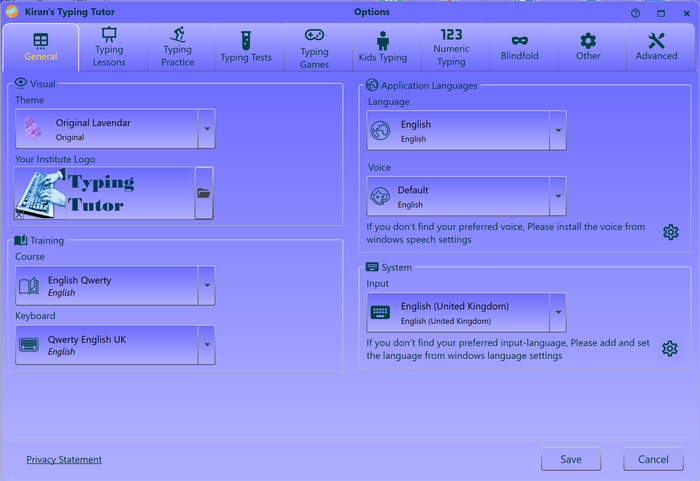
Click options button or menu ( or press short cut key) on main window to open options window

Only relevant tab visible when open options from other windows.

Default settings are good enough for typical usage but you can customize the app as per your requirements by changing relevant options.


Visual

Theme

Provided themes 

  • Original Lavender (default)
  • Classic Dark
  • Eco Green
  • Rebel Red
  • Khadi Natural
  • Retro Gray
  • Fluid Blue

Theme will be applied once Save button is clicked.


Logo and Title To add your company or institute logo, click on logo button or image to select logo, right click and select delete menu to delete and go back default logo. Type logo title to change the title.

Logo will be applied once you re-start the application.


Training

Course

This is the typing course contains all the lessons, practices and trainings required for your learning.

Keyboard

Select your keyboard that is relevant to the selected course. Make sure you are using the same language physical keyboard.

Selected keyboard language and course language must be same.


Application Language

App language

Selection application language if you are non-English user. This changes language of all labels of your application.

Application language doesn't change your course language, course language depends on selected course and keyboard.


System

Voice

Select your relevant voice. This is for typing instructions and speech (Windows OS setting).

Input language

Select input language that is relevant to the selected keyboard (Windows OS setting).


Sound

Typing sound Key-press sound helps you to type in a rhythm; we recommend you to key-press sound on, this will help encourage you to type faster.
Error sound

Beeps on typing error, alerts you on typo.


Audio

Audio help
  • No Audio help Gives no audio prompt for next key; check this if you prefer no audio help.
  • Say Character to be Typed tells next letter to be typed. this prompt will help you to build muscle memory.
  • Speak Type Instruction tells you typing instruction including what key needs to be pressed with what finger. This prompt will help you to build muscle memory faster.

Visual

Show key highlight

Highlights the key to be pressed on virtual keyboard,  it is important to keep this on in initial learning.

Show fingers preview

Shows finger positions on virtual keyboard. shows which finger to be struck and which key. this will help you not see the keyboard. Not looking at keyboard is important part of touch typing. 

Default Normal finger preview

Cartoon Cartoon style finger preview

Skeleton Shows finger skeleton view

X Ray Shows fingers X Ray view

Robot Shows robot hand style finger preview

Outline Shows finger outline preview

None No finger preview -- select this option if you do not want any finger preview.

Keyboard colors

Shows color coded keys on the virtual keyboard, this helps some people to build muscle memory faster.

Finger colors

Shows color coded border on virtual fingers (finger color matches with color coded keys)


Presentation

Text only (manual)

Presents only textual lesson, gives no automatic lesson audio. (audio can be started manually )

Text and audio

Shows lesson with audio, use thsi if you want audio lesson along with text lesson. 

Text and video

Shows animated agent, agent audio starts automatically, this is similar to text and audio option.


Typing

Typeover Mode

Allows you to type on the lesson without having separate typing textbox. this is not natural way of typing but you can use this feature if you prefer to type on top of lesson text

Move to next chapter
  • On Complete: moves to next chapter on completion of typing
  • On Space Key: moves to next chapter pressing space-bar after completion
  • On Return Key: moves to next chapter pressing return/enter key after completion
Show back-key on error

Shows back-key on error. using back-key on typo is natural, use this option if you want learn natural typing

Stay on error

Stays on typo/error; cursor stays on typo moves only when you type correctly.


Sound

Typing sound Key-press sound helps you to type in a rhythm; we recommend you to key-press sound on, this will encourage you to type faster.
Error sound

Beeps on typing error, alerts you on typo.

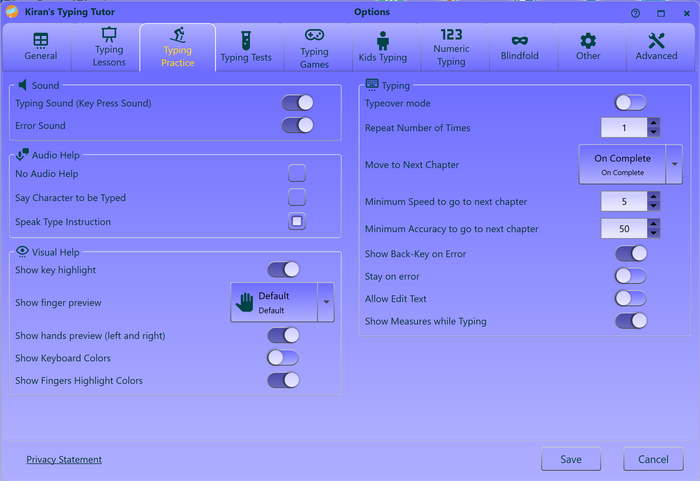
Audio

Audio help
  • No Audio help Gives no audio prompt for next key; check this if you prefer no audio help.
  • Say Character to be Typed tells next letter to be typed. this prompt will help you to build muscle memory.
  • Speak Type Instruction tells you typing instruction including what key needs to be pressed with what finger. This prompt will help you to build muscle memory faster.

Visual

Show key highlight

Highlights the key to be pressed on virtual keyboard,  it is important to keep this on in initial learning.

Show hand preview

Shows left and right side hands preview and points finger to be used (this will be helpfull if you turn-off finger preview)

Show fingers preview

Shows finger positions on virtual keyboard. shows which finger to be struck and which key. this will help you not see the keyboard. Not looking at keyboard is important part of touch typing. 

Default Normal finger preview

Cartoon Cartoon style finger preview

Skeleton Shows finger skeleton view

X Ray Shows fingers X Ray view

Robot Shows robot hand style finger preview

Outline Shows finger outline preview

None No finger preview -- select this option if you do not want any finger preview.

Keyboard colors

Shows color coded keys on the virtual keyboard, this helps some people to build muscle memory faster.

Finger colors

Shows color coded border on virtual fingers (finger color matches with color coded keys)


Typing

Typeover Mode

Allows you to type on the lesson without having separate typing textbox. this is not natural way of typing but you can use this feature if you prefer to type on top of lesson text

Repeat number of times

Sets number of times you want to practice before moving to next chapter.

Move to next chapter
  • On Complete: moves to next chapter on completion of typing
  • On Space Key: moves to next chapter pressing space-bar after completion
  • On Return Key: moves to next chapter pressing return/enter key after completion
Show back-key on error

Shows back-key on error. using back-key on typo is natural, use this option if you want learn natural typing

Stay on error

Stays on typo/error; cursor stays on typo moves only when you type correctly.

Show measures while typing

Shows real-time measures (WPM, KPM and accuracy)  while typing

Minimum speed to go next chapter

Sets  minimum typing speed required to move next chapter (repeats the same chapter if the speed the less than selected speed)

Minimum accuracy to go next chapter

Sets minimum typing accuracy required to move next chapter (repeats the same chapter if the accuracy the less than selected accuracy)

Allow edit text

Allows you to add or load custom lesson text.


Sound

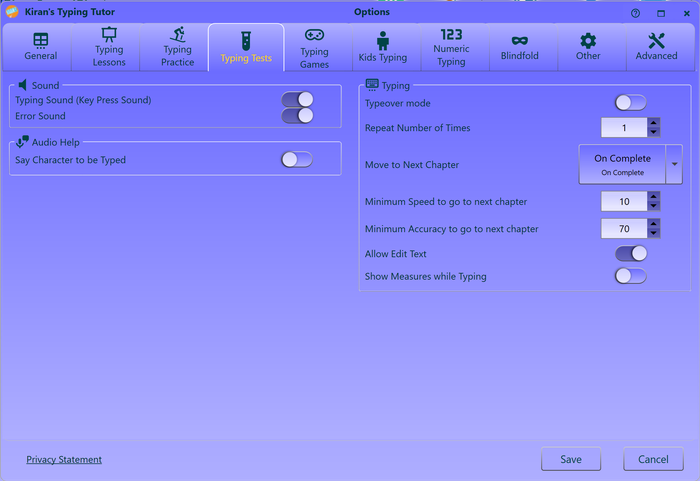
Typing sound Key-press sound helps you to type in a rhythm; we recommend you to key-press sound on, this will encourage you to type faster.
Error sound

Beeps on typing error, alerts you on typo.

Audio

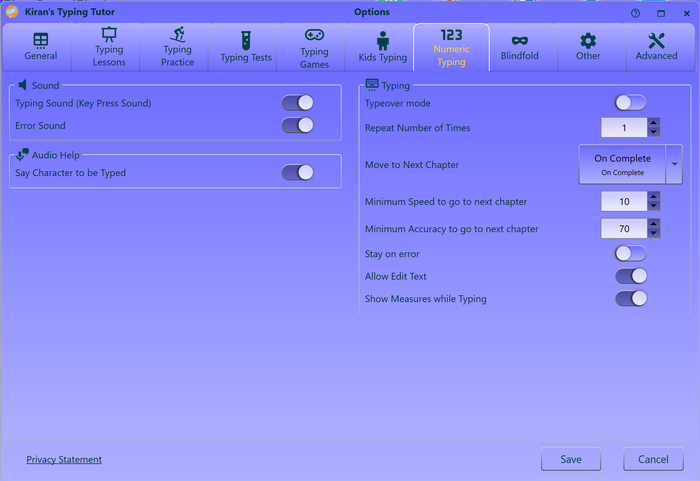
Say Character to be Typed

Tells next letter to be typed. this prompt will help you to build muscle memory.


Typing

Typeover Mode

Allows you to type on the lesson without having separate typing textbox. this is not natural way of typing but you can use this feature if you prefer to type on top of lesson text

Repeat number of times

Sets number of times you want to practice before moving to next chapter.

Move to next chapter
  • On Complete: moves to next chapter on completion of typing
  • On Space Key: moves to next chapter pressing space-bar after completion
  • On Return Key: moves to next chapter pressing return/enter key after completion
Show back-key on error

Shows back-key on error. using back-key on typo is natural, use this option if you want learn natural typing

Stay on error

Stays on typo/error; cursor stays on typo moves only when you type correctly.

Show measures while typing

Shows real-time measures (WPM, KPM and accuracy)  while typing

Minimum speed to go next chapter

Sets  minimum typing speed required to move next chapter (repeats the same chapter if the speed the less than selected speed)

Minimum accuracy to go next chapter

Sets minimum typing accuracy required to move next chapter (repeats the same chapter if the accuracy the less than selected accuracy)

Allow edit text

Allows you to add or load custom lesson text.


Sound

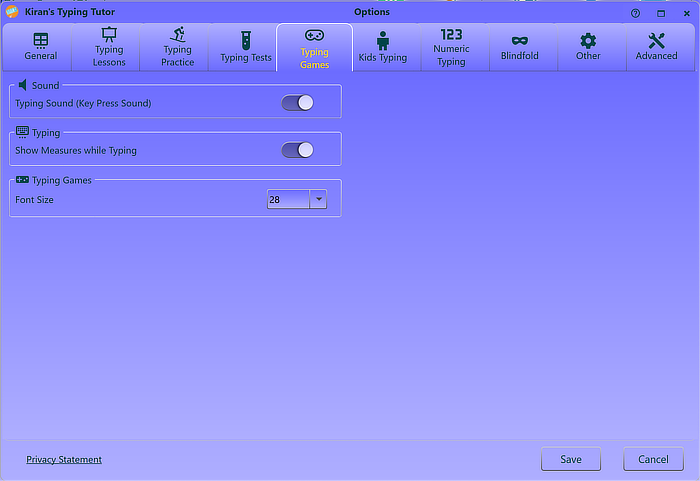
Typing sound

Key-press sound helps you to type in a rhythm; we recommend you to key-press sound on, this will encourage you to type faster.


Typing

Show measures while typing

Shows real-time measures (WPM, KPM and accuracy)  while typing


Typing Games

Typing game font size

Sets font-size for the games, change the font size if the default one is not suitable.


Sound

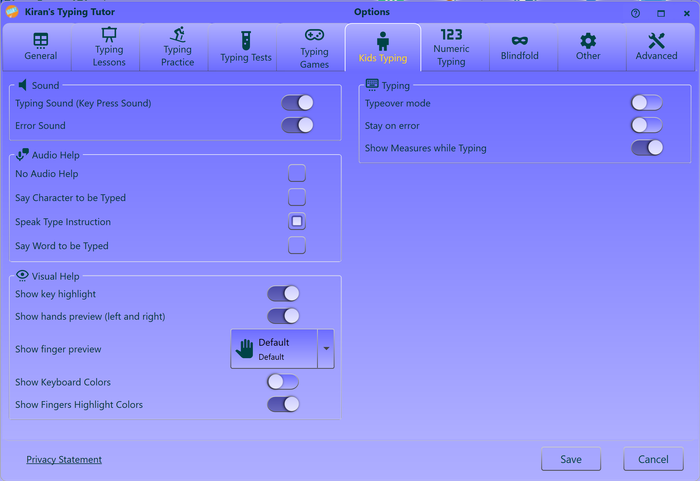
Typing sound Key-press sound helps you to type in a rhythm; we recommend you to key-press sound on, this will encourage you to type faster.
Error sound

Beeps on typing error, alerts you on typo.

Audio

Audio help
  • No Audio help Gives no audio prompt for next key; check this if you prefer no audio help.
  • Say Character to be Typed tells next letter to be typed. this prompt will help you to build muscle memory.
  • Speak Type Instruction tells you typing instruction including what key needs to be pressed with what finger. This prompt will help you to build muscle memory faster.
  • Say Word to be Typed tells the word to be typed.

Visual

Show key highlight

Highlights the key to be pressed on virtual keyboard,  it is important to keep this on in initial learning.

Show hand preview

Shows left and right side hands preview and points finger to be used (this will be helpfull if you turn-off finger preview)

Show fingers preview

Shows finger positions on virtual keyboard. shows which finger to be struck and which key. this will help you not see the keyboard. Not looking at keyboard is important part of touch typing. 

Default Normal finger preview

Cartoon Cartoon style finger preview

Skeleton Shows finger skeleton view

X Ray Shows fingers X Ray view

Robot Shows robot hand style finger preview

Outline Shows finger outline preview

None No finger preview -- select this option if you do not want any finger preview.

Keyboard colors

Shows color coded keys on the virtual keyboard, this helps some people to build muscle memory faster.

Show Finger colors

Shows color coded border on virtual fingers (finger color matches with color coded keys)


Typing

Typeover Mode

Allows you to type on the lesson without having separate typing textbox. this is not natural way of typing but you can use this feature if you prefer to type on top of lesson text

Stay on error

Stays on typo/error; cursor stays on typo moves only when you type correctly.

Show measures while typing

Shows real-time measures (WPM, KPM and accuracy)  while typing


Sound

Typing sound Key-press sound helps you to type in a rhythm; we recommend you to key-press sound on, this will encourage you to type faster.
Error sound

Beeps on typing error, alerts you on typo.

Audio

Audio help
  • Say Character to be Typed tells next letter to be typed. this prompt will help you to build muscle memory.

Typing

Typeover Mode

Allows you to type on the lesson without having separate typing textbox. this is not natural way of typing but you can use this feature if you prefer to type on top of lesson text

Repeat number of times

Sets number of times you want to practice before moving to next chapter.

Move to next chapter
  • On Complete: moves to next chapter on completion of typing
  • On Space Key: moves to next chapter pressing space-bar after completion
  • On Return Key: moves to next chapter pressing return/enter key after completion
Minimum speed to go next chapter

Sets  minimum typing speed required to move next chapter (repeats the same chapter if the speed the less than selected speed)

Minimum accuracy to go next chapter

Sets minimum typing accuracy required to move next chapter (repeats the same chapter if the accuracy the less than selected accuracy)

Stay on error

Stays on typo/error; cursor stays on typo moves only when you type correctly.

Allow edit text

Allows you to add or load custom lesson text.

Show measures while typing

Shows real-time measures (WPM, KPM and accuracy)  while typing


Sound

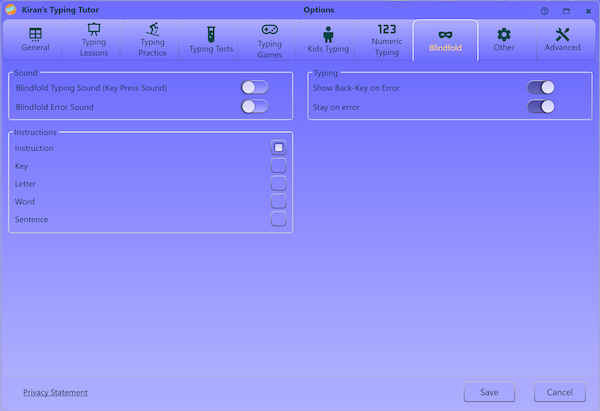
Blindfold typing sound

Key-press sound helps you to type in a rhythm; we recommend you to key-press sound on, this will encourage you to type faster.

Blindfold error sound

check for error beep

Audio

Audio help
  • No Audio help Gives no audio prompt for next key; check this if you prefer no audio help.
  • Say Character to be Typed tells next letter to be typed. this prompt will help you to build muscle memory.
  • Speak Type Instruction tells you typing instruction including what key needs to be pressed with what finger. This prompt will help you to build muscle memory faster.

Typing

Show back key on error

check for to show back key on error. (this is not required if you check below "Stay on error"

Stay on error

check for stay on typo/error. cursor stays on typo moves only when you type correctly.


Speed Checker

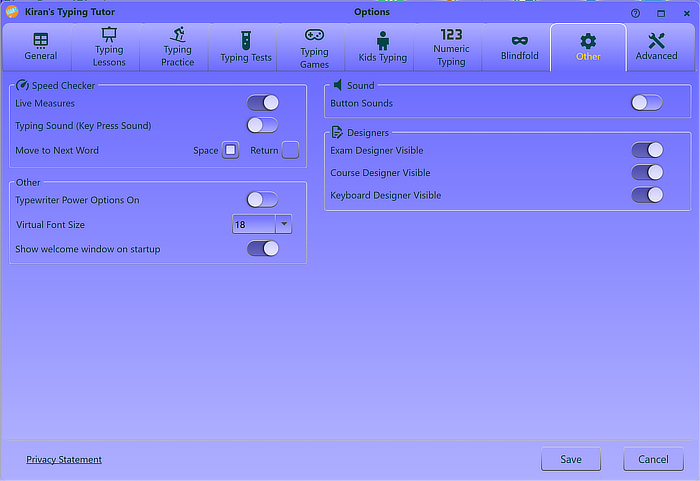
Live Measures

Shows real-time measures (WPM, KPM and accuracy)  while typing

Typing Sound

Key-press sound helps you to type in a rhythm; we recommend you to key-press sound on, this will encourage you to type faster.

Move to next word
  • Space: moves to next word when space key pressed
  • Return: moves to next word when return/enter key pressed


Other

Typewriter Power option on

Adds elecctric typewriter funclition like return/enter key (allows you to use return key, arrow key, type-over and typeface change, we recommend you not to turn this on to get real retro typewriter experience).

Virtual Fornsize

Sets fontsize of Virtual Typing window

Show welcome window on startup

Shows welcome window when application is launched. (we strongly recommend you to turn this on, we may add new features this window in future)


Sound

Button sound

check for buttons focus (mouse entry) sound.


Designer

Exam designer visible

check for exam designer button visible on main window

Course designer visible

check for course designer button visible on main window

Keyboard designer visible

check for keyboard designer button visible on main window


User Management

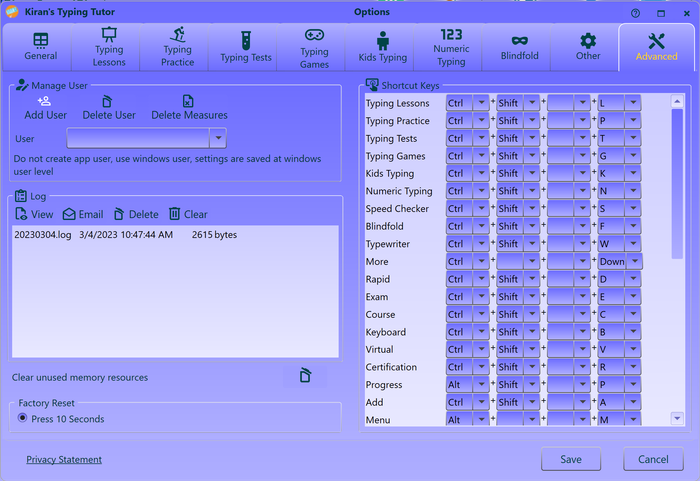
Add user

click + add user button to add new user

Delete user click delete user to delete the selected user.

Only windows local administrator can delete the user and user measure. Log on as administrator to delete the user or user measures.

Delete user measures

click delete user measures to delete the selected user measures.


Log

View log

Click on view log button at the top

Delete log Click on delete log button at the top

System automatically deletes and manages old logs, you do not need to delete logs your self.

Send log to us Click on send log button at the top right, it opens feedback window the log text.

Send us only when you see some errors in the log and that will help us to fix the issues.

Clear un-unsed mememory

Clears un-used memory (usually you do not need to clear memory, system clears automatically)


Factory Reset

Factory reset

Clears all the settings and resets the application to original state. Mouse down on Factory reset radio button at least for 10 seconds NOTE: Factory reset will erase all your settings and defaults to the original settings


Shortcuts

Shortcut keys

Sets shortcut keys; change keyboard shortcut key if the default one are not suitable for you.


see also:
using typing tutor